Updating Payment Methods
Add, change, or remove payment methods on your account.
Managing Your Payment Information
Keep your payment information current to ensure uninterrupted access to DittoSheets. You can update payment methods at any time through your account settings.
Accepted Payment Methods
DittoSheets accepts:
- Visa
- Mastercard
- American Express
- Discover
- Amazon Pay
- Google Pay
Updating Your Payment Method
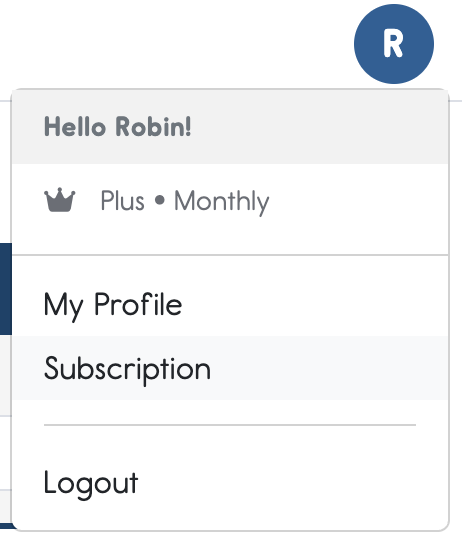
- Click on your profile icon in the upper right hand corner of the toolbox and select "Subscription"
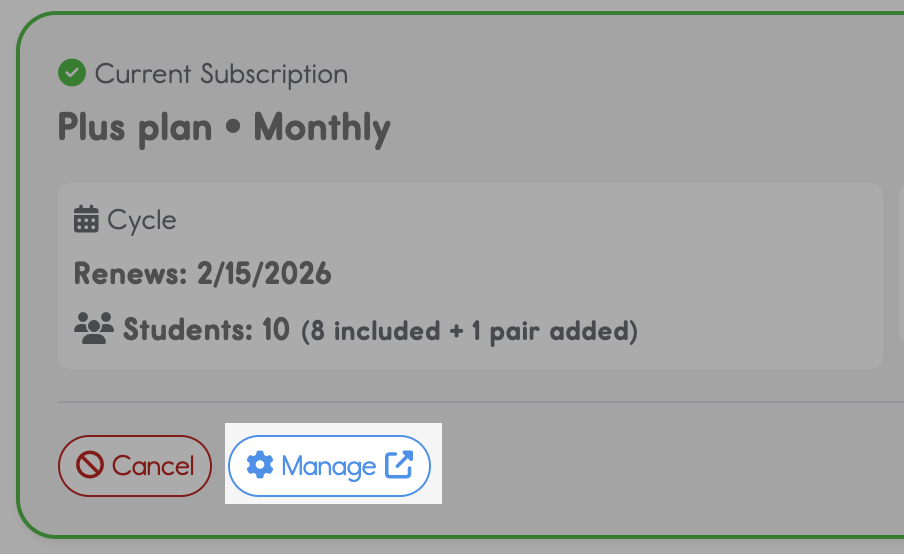
- Click on the "Manage" button to be redirected to the Stripe portal to make adjustments.
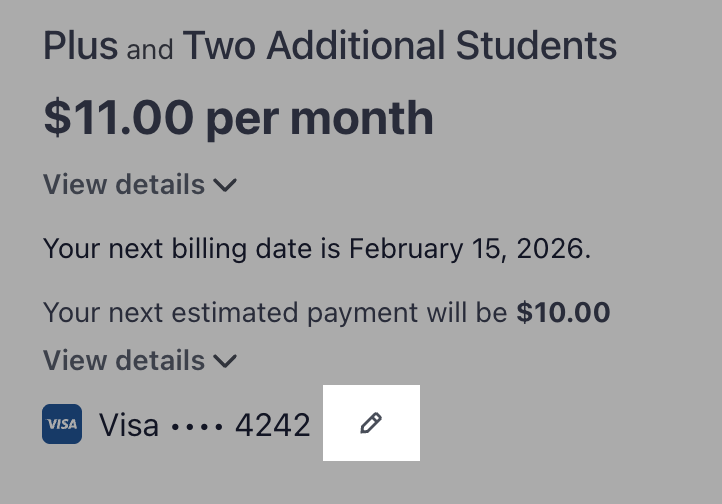
- Click on the edit (pencil) icon next to your current payment method to make changes
- Here you can "Add a new payment method" and then update your subscription
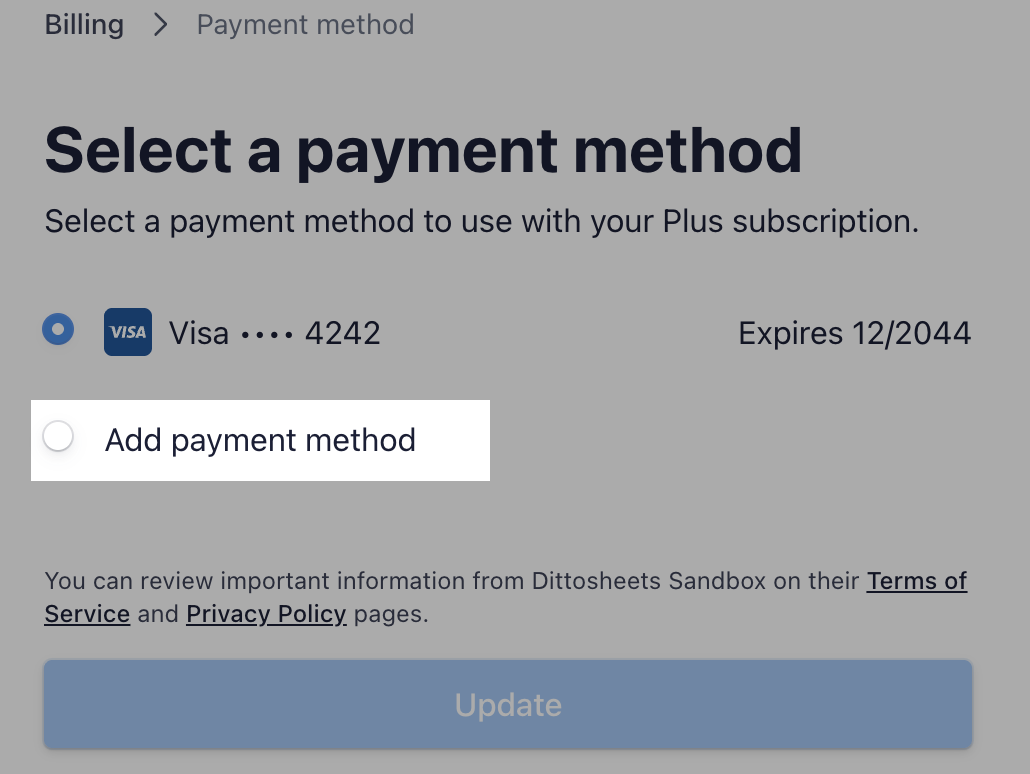
Your next charge will use the new card or wallet.
Failed Payments
If a payment fails (expired card, insufficient funds, etc.):
- You'll receive an email notification with the details
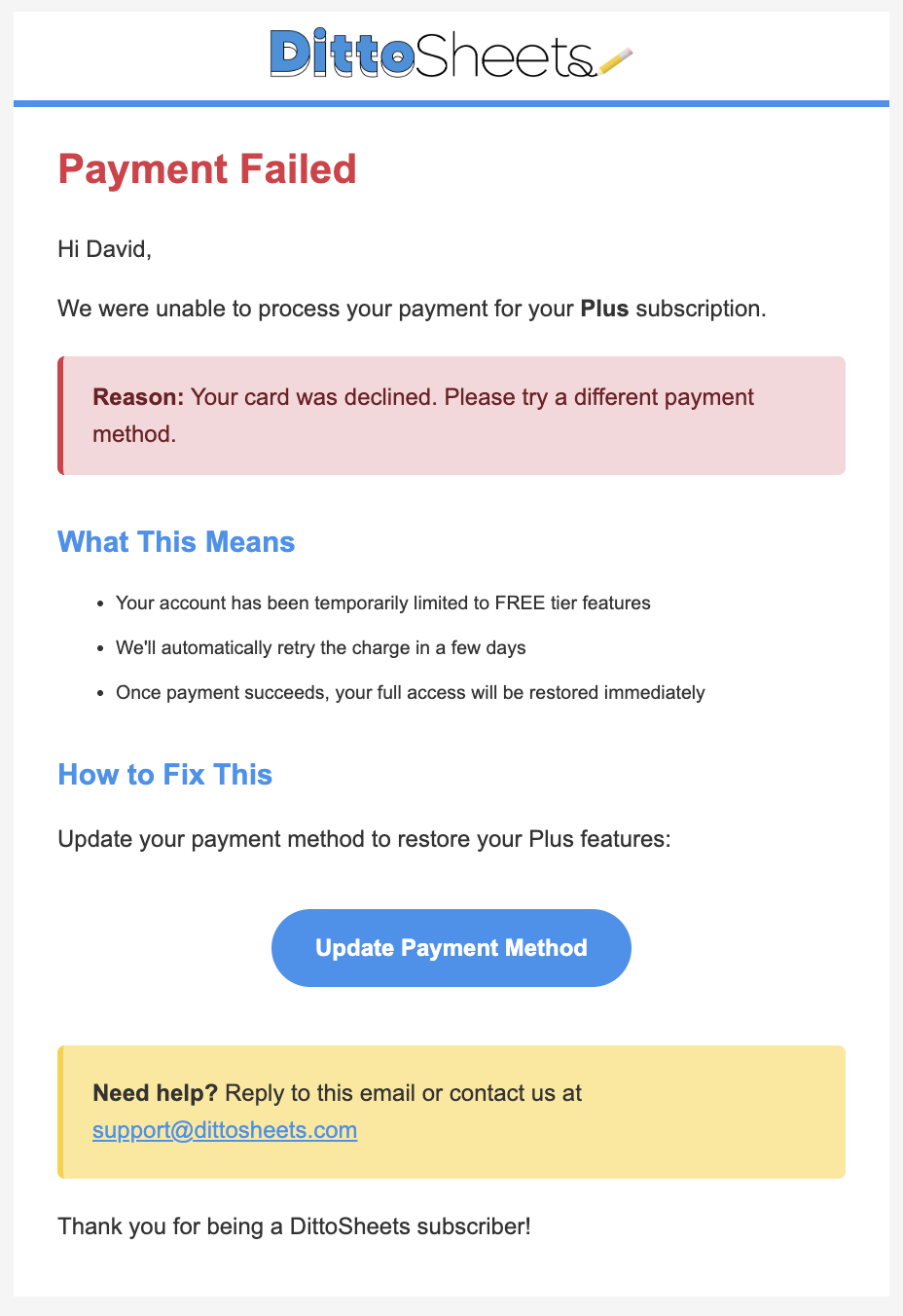
- Your account will temporarily be limited to FREE tier features
- You can click on the link in the email to update your payment method
- We'll automatically retry the charge
- Once payment succeeds, your full access is instantly restored.
Billing Security
Your payment information is protected:
- We partner with industry leader Stripe to manage all of our payments and subscriptions
- Card numbers are never stored on our servers
- You can remove saved payment methods anytime
Billing Address
Make sure your billing address matches what your bank has on file. Mismatched addresses are a common cause of payment failures.