Organizing with Tags
Use tags to categorize and quickly find your content.
The Power of Tags
As your Content Hub grows, tags become essential for finding things quickly. A good tagging system is like having a personal librarian who knows exactly where everything is.
How Tags Work
Each piece of content can have multiple tags. When you search or filter by a tag, you'll see all content with that tag. It's that simple.
Creating a Tag System
Before you start tagging randomly, think about how you'll want to find content. Here are some common approaches:
- By Subject: spelling, bible, poetry, history, science
- By Student: emma, jacob, room-12, beginners
- By Grade Level: k-1, grades-2-3, middle-school
- By Time Period: week-1, september, q1
- By Theme: holidays, character, seasons, animals
Tagging Best Practices
- Be consistent - Decide on "bible" or "scripture" and stick with it. Instead of typing the word, "Bible," Type "B" and choose "bible" from ther tags you already created. This way you don't have a "Bible" tag and a "bible" tag.
- Use lowercase - Tags are case-insensitive, but lowercase looks cleaner
- Keep it simple - 2-5 tags per item is usually enough
- Think about finding - What would you search for to find this content?
Build a Tag Taxonomy
| Category | Example Tags |
|---|---|
| Subject | spelling, bible, poetry, language arts, history, latin, recitations, grammar rules |
| Supplimenting Curriculum | IEW vocab words, Answers In Genesis, co-op memory verses, |
| Grade Level | pre-k, k-1, 2-3, 4-6, middle, high, |
| Time | 2026, 2027, fall, spring |
| Student | sarah, jacob, |
Filtering by Tags
In the Content Hub, click on any tag to filter the list to only show content with that tag. You can also use the search bar to find tags.
It's not too late!
You should always "begin as you mean to go," but even if you didn't discover tagging until just today, but you already have 99 items in your Content Hub, It's not too late!
Simply use Bulk Tagging!

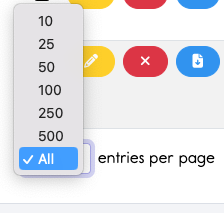
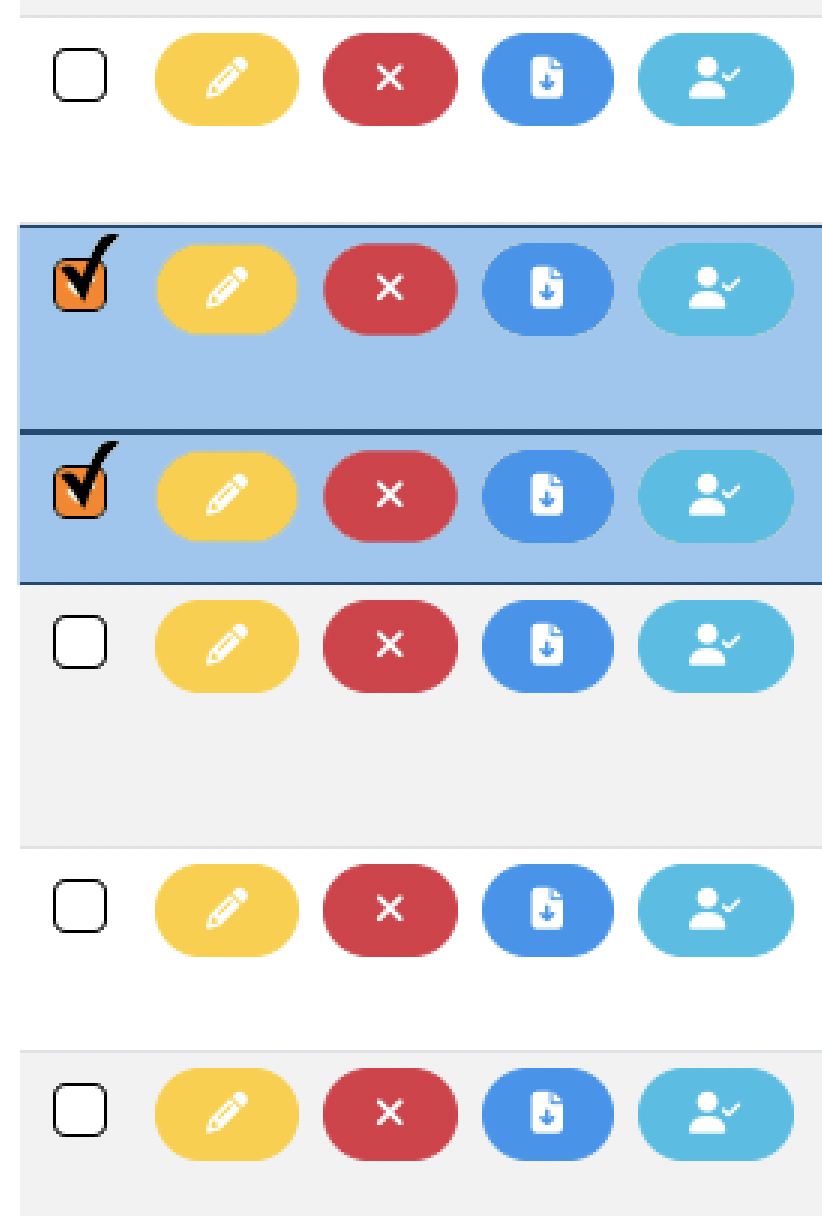
Next, check all the content that needs the "recitations" tag

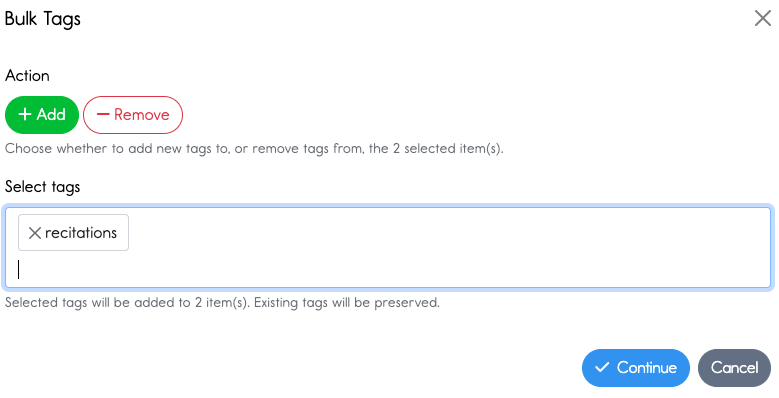
Then hit the green +Add at the top.
Click continue
Now you've retroactively added tags! Great job!