Creating Student Profiles
Save settings for individual students to speed up worksheet creation.
Creating Student Profiles
If you teach multiple students with different needs, Student Profiles let you save preferred settings for each one. Switch between students and have all their preferred settings applied automatically.
What is a Student Profile?
A Student Profile stores:
- Student name (can be pre-filled on worksheet footers)
- Preferred font and size (line height)
- Preferred line type
- Letter and Word spacing preferences
- Preferred Sheet Type (can select multiple Sheet Types and multiple quantities)
- On/Off Name & Date field and its Name & Date text
- Footer details
- A Student Profile stores ALL THE SETTINGS INSIDE SHEET BUILDER
A Student Profile DOES NOT store:
- The text that goes in a Title field, Subtitle field, or Body field.
Creating a Student Profile


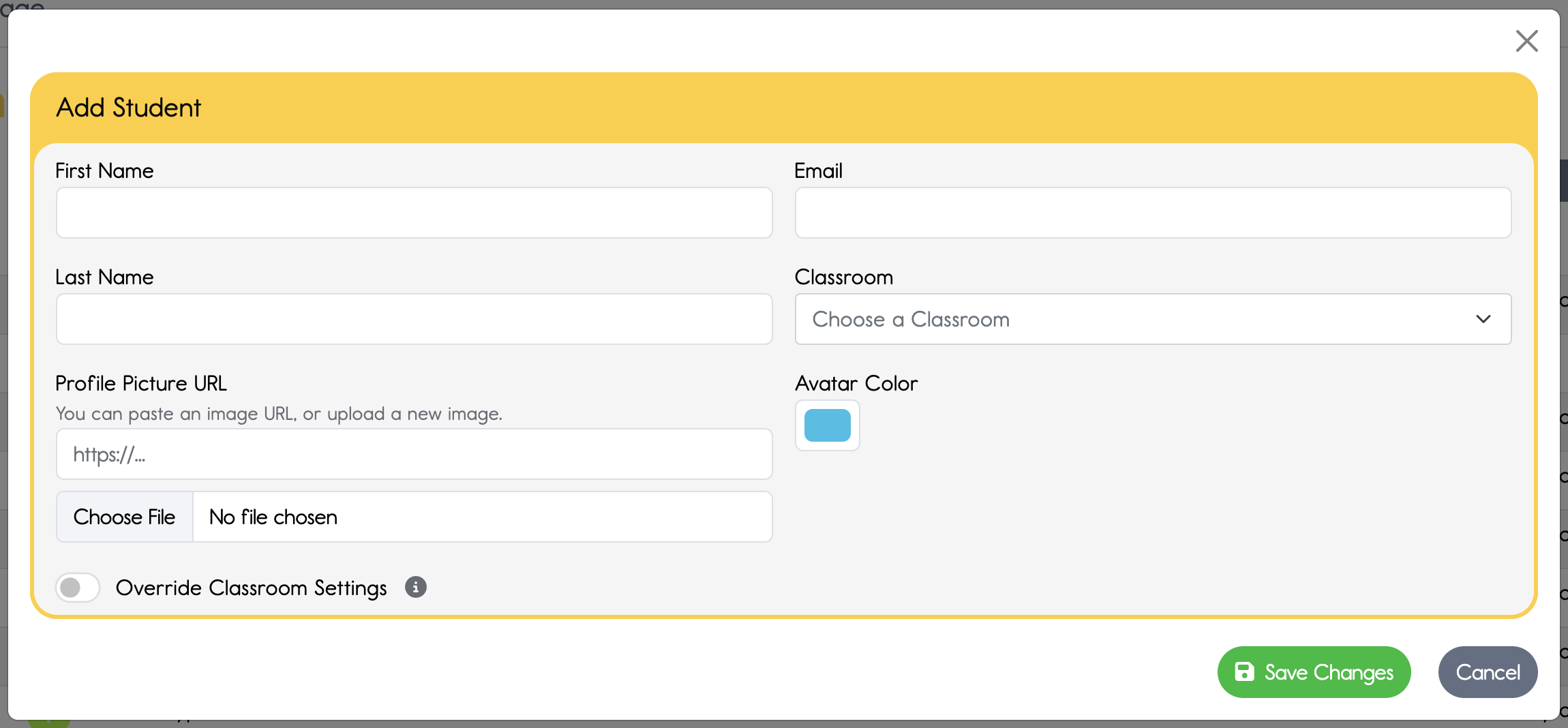

Configure the preferred settings for the student.

Creating a Student "backwards" - Using Quick Add Student
That moment when you are already neck-deep in creating a beautiful Sheet... you've picked a fun color for the title, and made the font and size just right. You've settled on a line type and line size that works for your student, and the sheet looks great .....annnnd you realize you should have been doing this in the Student Settings so you never have to tweak all this again.
We've got you covered.
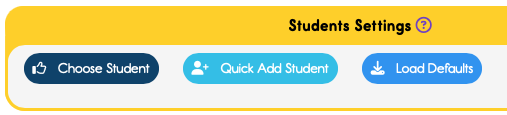
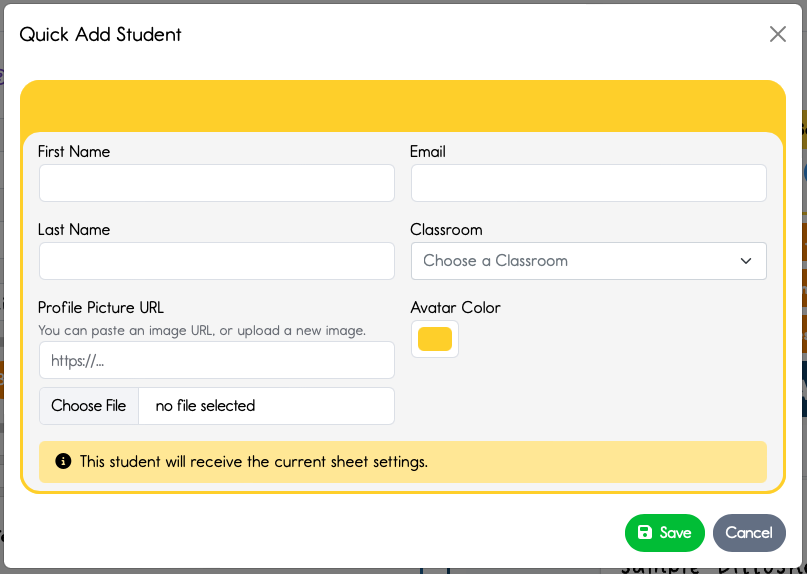
Now you have a new student with the settings from that perfecto sheet.
Benefits of Student Profiles
- Time savings - No need to reconfigure settings each time
- Consistency - Same settings every time for reliable practice
- Differentiation - Different students get appropriately customized work
Think outside the... "Students"
Robin
Plus users are allotted 8 students. These different settings could be for Sammy, Joe, Anna, Eric, Thomas, Eleanor, Claire, and Beau.
*OR* you can make your 8 settings more of a general preset... Preschooler, k-2, 3rd-4th print, 3rd-4th cursive, 5th-6th alternative cursive, upper elementary, Middle Schooler's funky Friday worksheets, Mom's memorization, etc.
Next...
How to apply your Student Settings to a Sheet
Related
Override DittoSheets' System Defaults and create your own Profile's Defaults