Loading a Student's Settings
Apply the preferences you have already set to the Sheet you are creating.
Loading a Student's Settings in the Sheet Builder
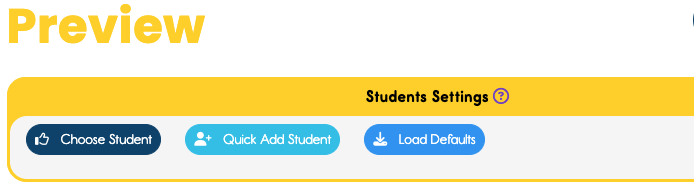
Without reinventing the wheel each time you sit down to create a Sheet, you can recall the settings you have already creating for a specific student and load in all those preferences with the click of a button.
Once you have already Created a Student Profile, and have given that student unique settings...


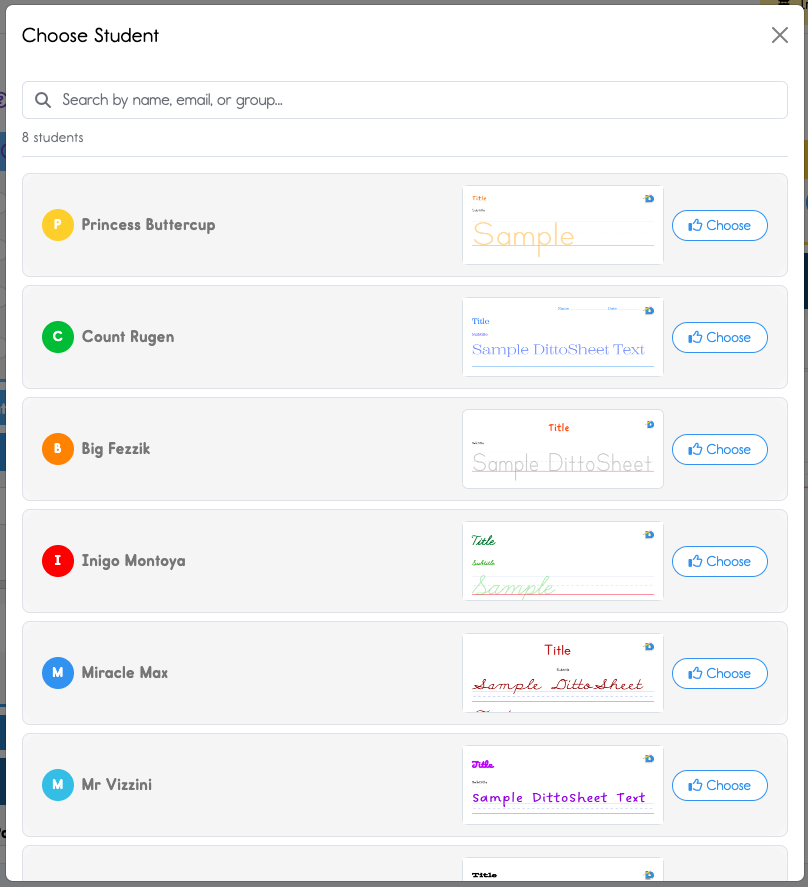
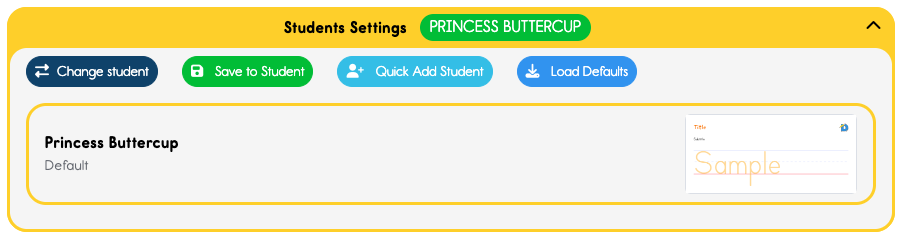
The student you select will stay in effect until you change the student, reload your Profile's Defaults, or the DittoSheets system defaults.
If you have not already created a Student Profile
Create one!
If you need help, you can GO HERE to learn how!