Multiple Copies of a single Sheet Type
Create worksheets with repeated lines for intensive practice.
Multi-Copy Feature
Repetition is often the key to learn a text, especially when memorization is the goal. The Multi-Copy feature automatically repeats your content to fill the page.
Within one PDF, you may have multiple copies of the same Sheet Type...
In the Sheet Builder:
In the Sheet Builder notice this example: Certain Sheet Types are toggled ON, and have quantities marked.
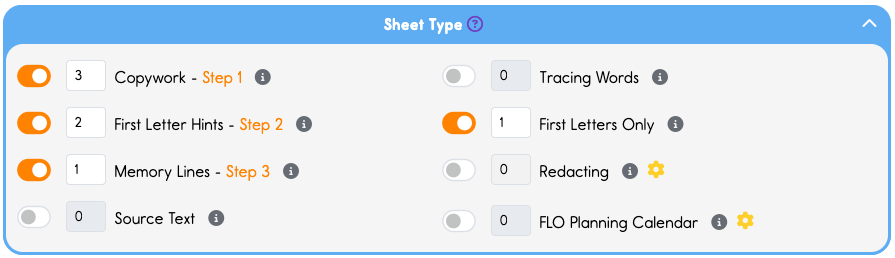
This PDF will print out (in this order):
3 copies of the Copywork.
2 copies of First Letter Hints
1 copy of Memory Lines, and
1 copy of FLO
WHY would someone need multiple copies of the same thing? For printing several days of worksheets all on one easy step. Read more about the Three Step Method and Creating your own curriculum HERE.
Utilizing this feature saves you from having to print out each Sheet type individually. Another huge time-saver.🧡
The Advanced Sheet has a key difference...
Unlike in the Simple Sheet Builder, when you use the Advanced Sheet Builder, you can reorder the sequence of Sheet Types as they appear in the finished PDF.
In this example below we grabbed First Letters Only and moved it to the first spot.
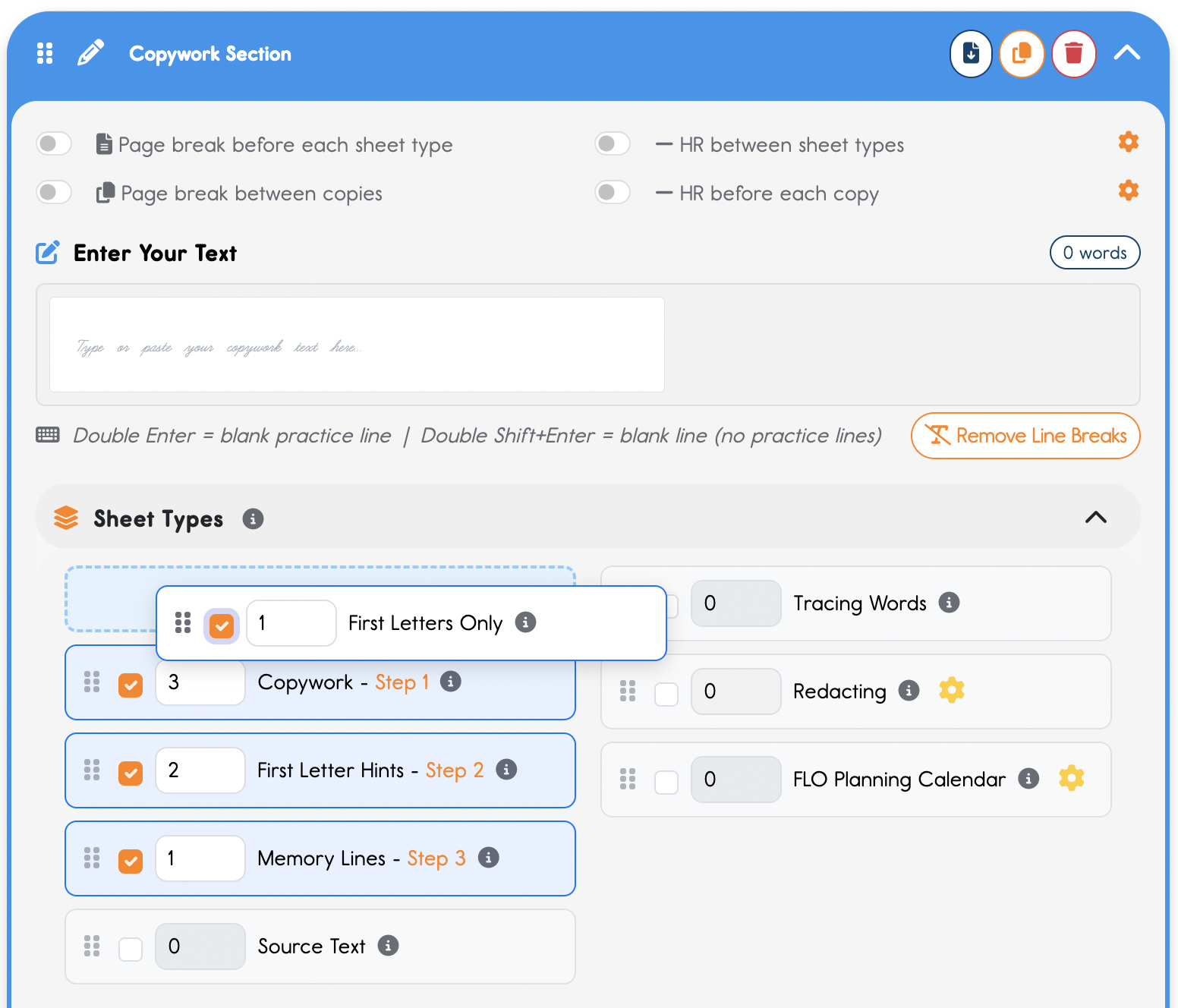
So now FLO will be the first page of the PDF. then
3 copies of the Copywork.
2 copies of First Letter Hints, and
1 copy of Memory Lines
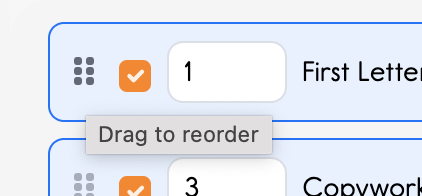
To reorder Sheets in the Advanced Sheet Builder, grab the six dots on the left, drag the element to your desired location, and drop it there.