Loading Content into Sheet Builder
Quickly load saved content when creating worksheets.
Using your Content to make a Sheet
The whole point of saving content is to access it quickly without a lot of fuss. Here's how to load your saved content into the Sheet Builder.
Here's how:
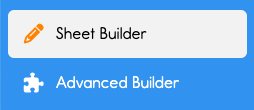
In the side menu, tap Sheet Builder. Or tap Advanced Sheet Builder. The same steps apply. 😊

At the top, hit the Load Content Button.
This will bring up the Choose content window.
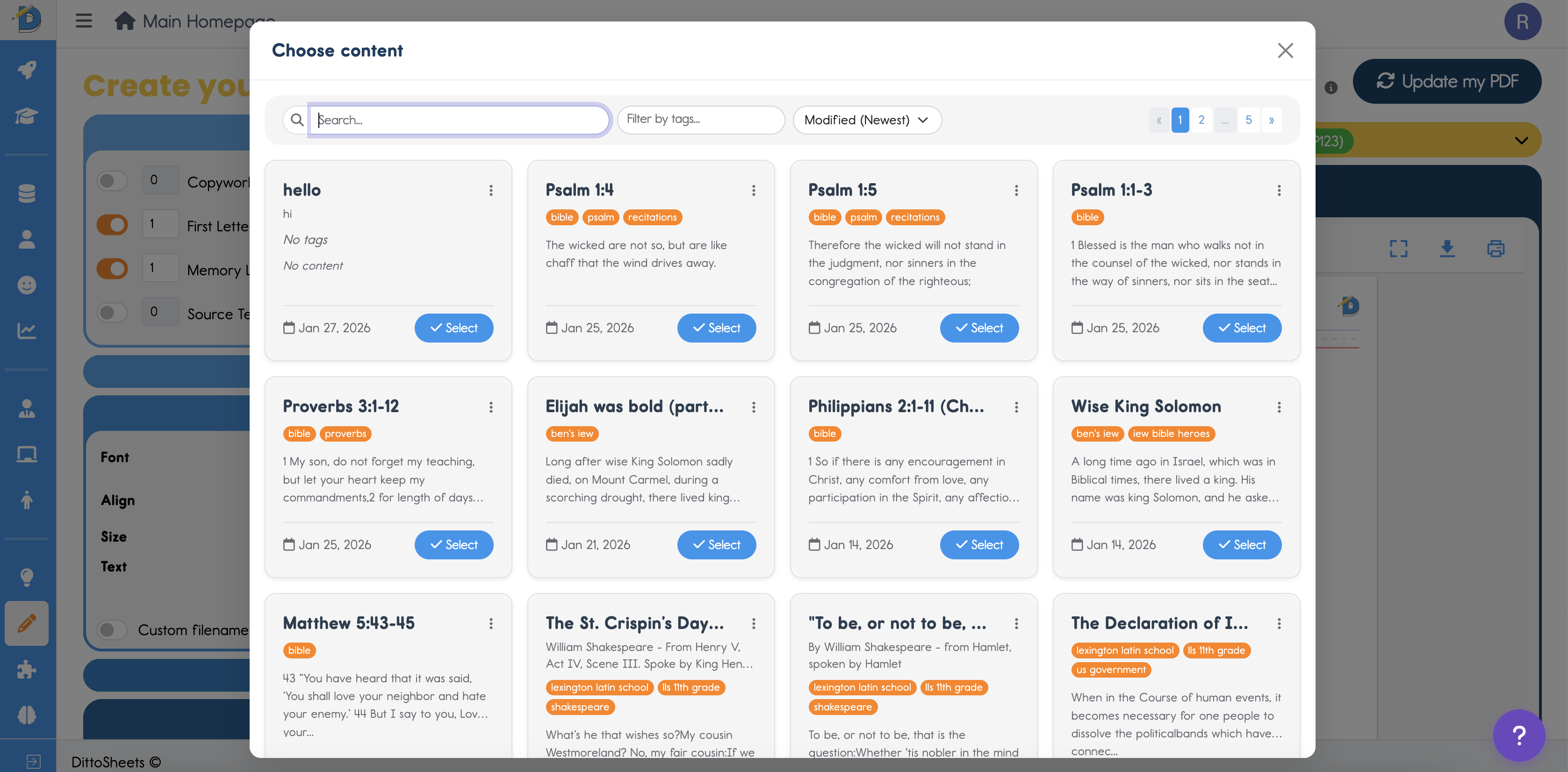
If you created the content just recently, it may already be at the top of this page, since it sorts from newest to oldest.

If this is something you made, last year then we're going to need to search...
- Do you know the title or part of the title? Start typing it in the search field.
- Do you know a unique word in the body or subtitle? Start typing that in the search field.
- ⭐️⭐️⭐️ Have you been tagging your content? GOLD STAR FOR YOU! ⭐️ Hit filter by tags and choose from your list of tags.
- You can also sort all your cards alphabetically and browse by title.
Voilà!
Once you find it, Hit the blue Select button on the Content. This will bring it into the Sheet Builder!
Next, apply the correct student settings.
At the top right of the Sheet Builder, tap the yellow Student Settings card. This opens it.
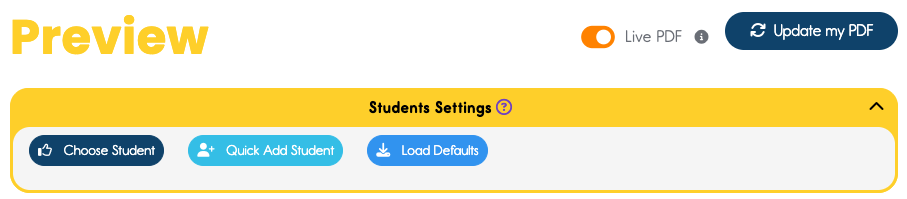
Hit the Choose Student button, and choose the student that you're making this Sheet for.
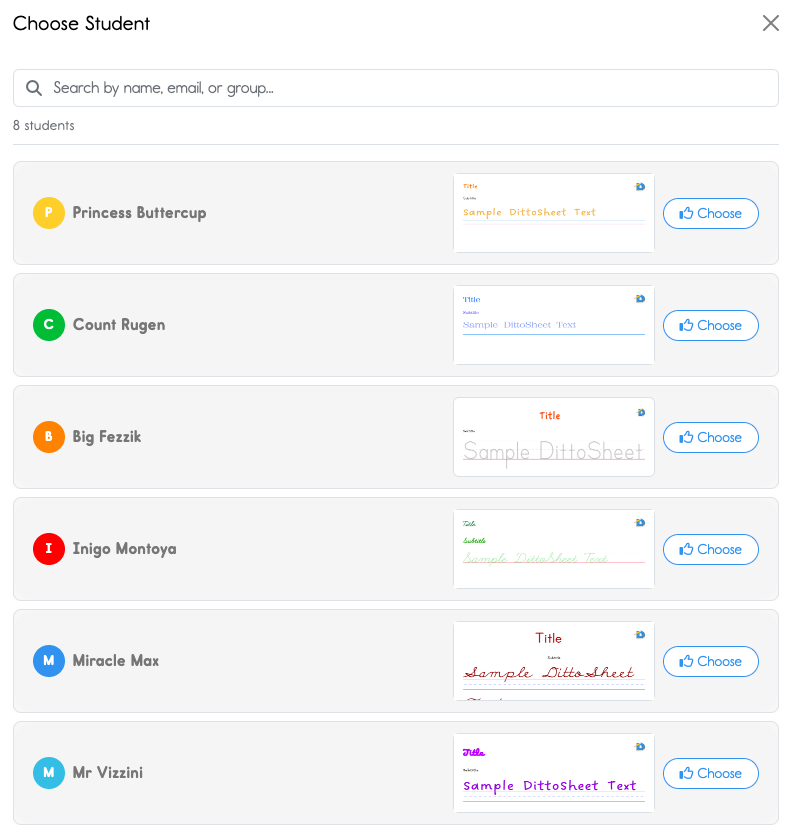
Click Choose on the right student.
Great! Now give it a once over.
- Do the pages of the PDF look good?
- Are there tweaks you need to make?
- Check the quantities you have selected...
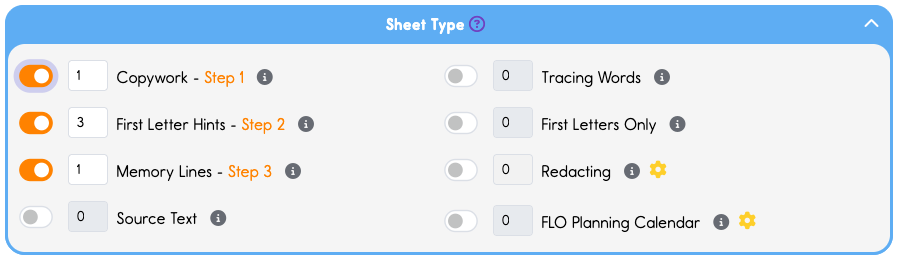
In this example above you see I have 1, 3, 1. ... This means I'll get one copy of Copywork, three copies of the same First Letter Hints, and one copy of memory lines.
If you're wondering why multiple copies would ever be necessary, then you have got to check out this lesson here...
If everything looks great, then yay! Print or Download! ... ⚠️
⚠️ Attn: Free Subscribers and Lite Subscribers
⚠️ You'll need to watch your page count as you are hitting the download button as well as the print button. This is not a cap on the number of PDFs, this is a cap on the number of pages. (Upgrade to Plus for Unlimited pages.)
There is one more way to Add Content into the Sheet Builder...
If you began in your Content Hub, then, once you find your content


Tap the blue Load button next to the content of your choice. This will load your content into the Simple Sheet Builder. If you would like to load it into the Advanced Sheet Builder, then you need to start in the Advanced sheet Builder and hit Load Content once you're inside that Builder.
Also, right after you create a piece of content, you have the option to load that content in the Simple Sheet Build right away....

I think we covered it! Happy Loading!