Previewing and Downloading Your Worksheet
Learn how to preview your work and download print-ready PDF files.
Preview and Download
Before downloading your worksheet, you will want to preview it to ensure everything looks correct. DittoSheets provides a live preview that updates as you make changes.
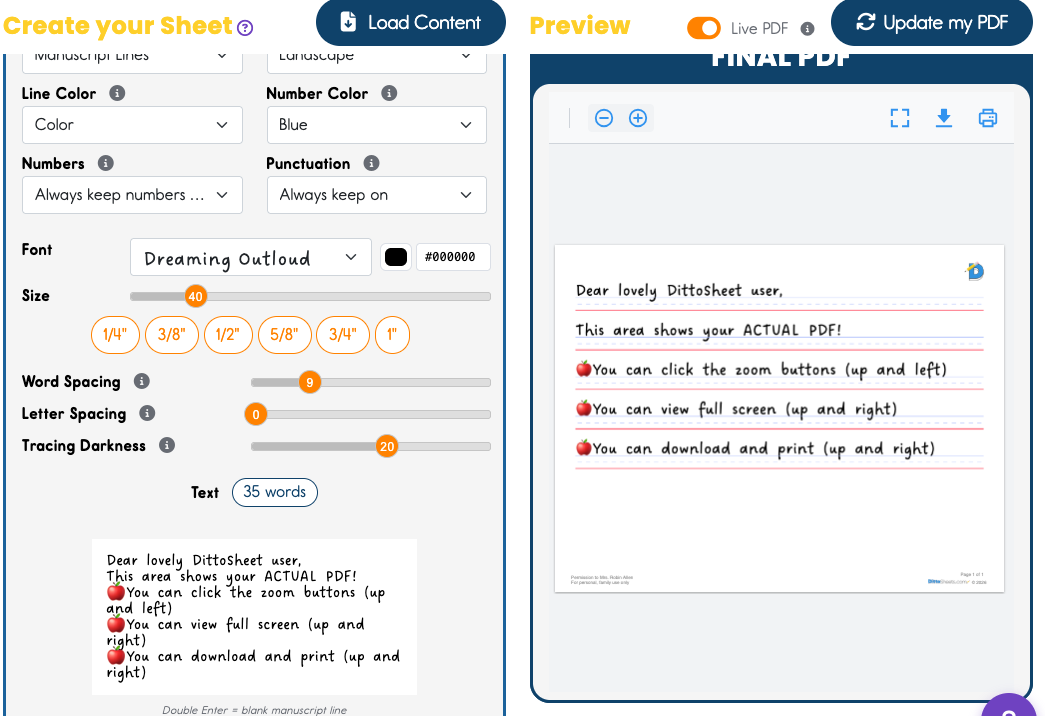
What you type on the left, shows up on the right.
After you fill in the text boxes in the cards on the left (Name&Date, Title, Subtitle, and Body) you'll see your text appear in the FINAL PDF Preview on the right. ***The PDF Preview shows exactly what is sent to the printer.
This preview area does not count toward your pages per month tally. (Free and Lite Subscriber)
"What if my Preview isn't updating?"

In the top right, find the Live PDF toggle.
- If it is ON (orange), the FINAL PDF Preview will update after every change you make on the left.
- If it is OFF (gray), you will need to tap the Update my PDF button.
- This toggle is especially helpful when PDFs are lengthy. With any seemingly minor tweak, the entire PDF renders. If you have 5, 10... 25 pages in your PDF, this could be a bit of a wait!
Understanding the Preview
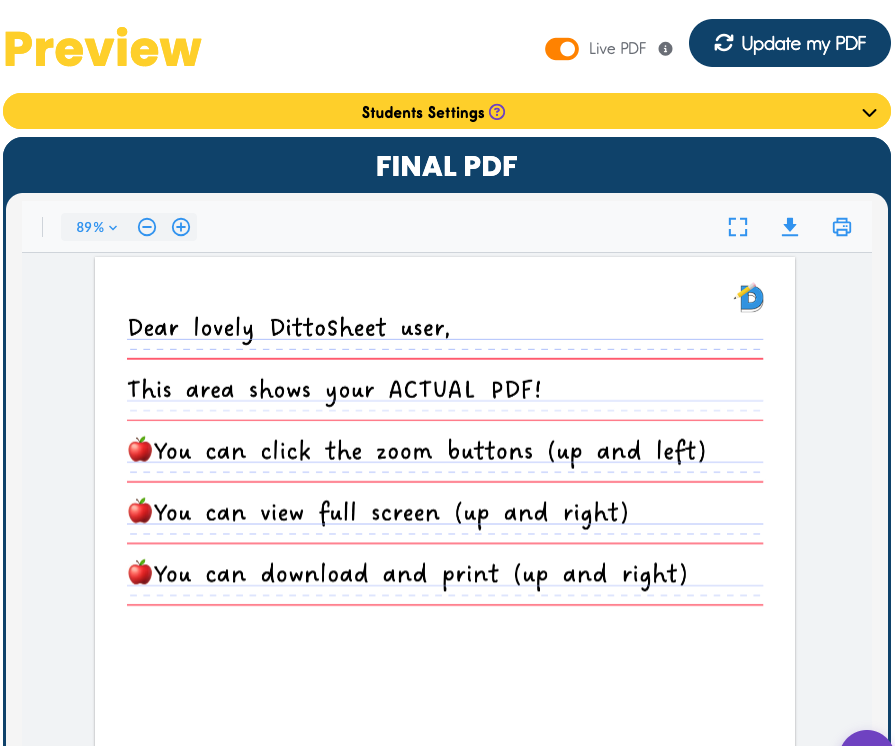
The preview panel on the right side of the screen shows exactly how your worksheet will look when printed. Key features:
- Page navigation - If your content spans multiple pages, use arrows to view each page
- Zoom controls - Zoom in to check details or zoom out to see the full page
What to Check Before Downloading
Review these elements in the preview:
- ☐ Content is complete and spelled correctly
- ☐ Font is appropriate for the student
- ☐ Lines are the right size for the student
- ☐ Title (if any) is correct
- ☐ Name/date fields are showing (if desired)
- ☐ (optional) Add a custom file name to your PDF. (Otherwise it defaults to using the Title as the filename.)
⚠️ Attn: Free Subscribers and Lite Subscribers
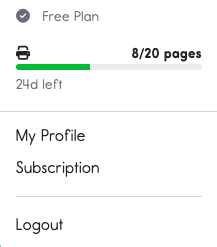
⚠️ You'll need to watch your page count as you are hitting the download button as well as the print button. This is not a cap on the number of PDFs, this is a cap on the number of pages. (Upgrade to Plus for Unlimited pages!)
Download and Print
Downloading Your PDF
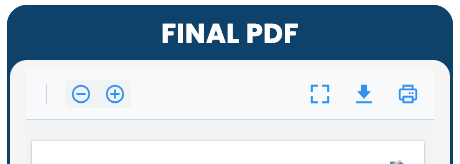
- ⚠️Click the "Download PDF" button
- The PDF will be generated and automatically downloaded
- The file will be in your Downloads folder
Printing Your Worksheet
- ⚠️Click the Print button
- This will open up your print dialog window. These will vary from browser to browser, and device to device.
- If you used color in your PDF, make sure to print in color and not grayscale.